DIY LED strip projects
DIY LED strip projectsDate of publication: 18-07-2025 🕒 5 min read
Want to create spectacular LED lighting but not sure where to start? Learn how to control LED strips from your phone using Arduino Nano.
Introduction
Using an LED strip with an Arduino is a fun way to make interesting lighting effects. With just a few basic components and some simple code, you can design colorful patterns with ease.
This guide will show you how to connect the LED strip to the Arduino Nano and how to use the Adafruit NeoPixel library.
What you'll need:
- Arduino NANO
- IPIXEL Led Strip
- Wires
- USB Cable
1. How LED strips work
LED strips are flexible circuits with small lights called LEDs. Each LED can display different colors, and you can control them individually to create patterns.
LED strips are popular because they require only one wire - the data line - to control all the LEDs.

A typical LED strip usually has three main connections: the power (VCC) - connects to a 5V power supply, the ground (GND) - connects to the ground to complete the circuit, and the data input (DI) which connects to the Arduino to receive instructions.
NeoPixel strips are easy to use with an Arduino because you can control many LEDs with just one wire. This makes them perfect for projects where you want to create colorful lighting effects.

2. Connect the LED strip
To connect the LED strip to the Arduino Nano, first connect the VCC pin on the LED strip to the 5V pin on the Arduino for power.
Then, connect the GND pin on the LED strip to the GND pin on the Arduino to complete the circuit.

Finally, link the Data Input (DI) pin of the LED strip to a digital pin on the Arduino, such as pin D6, to control the LEDs.
If your LED strip has many LEDs, it’s better to use an external 5V power supply instead of the Arduino. Just make sure to connect the ground of the external power supply to the Arduino’s ground. This way, the Arduino Nano can control the LED strip properly.

3. Setup
To set up the Arduino Nano, you first need to install the Arduino software on your computer. Download it from the Arduino website and follow the installation instructions. Once the software is installed, connect your Arduino Nano to your computer using a USB cable. Open the Arduino software and select "Arduino Nano" under the "Board" menu in the "Tools" section. Next, select the correct COM port for your Arduino under "Port" in the same menu.

You also need to add the NeoPixel library to the Arduino software. To do this, go to the "Sketch" menu, choose "Include Library," and then select "Manage Libraries." In the Library Manager, search for "Adafruit NeoPixel" and click "Install" to add it. With the library installed, your Arduino Nano is ready to control the LED strip.
4. Software
Start by exploring the example programs. These pre-written sketches are a great way to understand how the NeoPixel library works. For that click on File>>Examples>>Adafruit NeoPixel>>simple
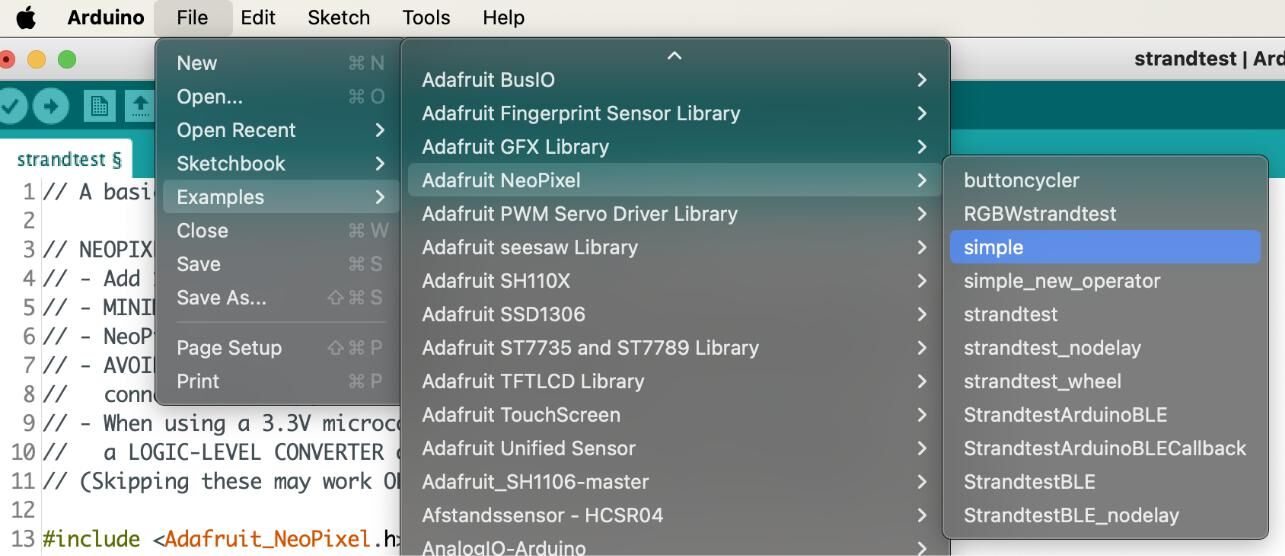
Then adjust the number of pixels that your LED strip has in the code:

And finally you can connect the Arduino to your PC and click the compile & upload button in the IDE.
5. Conclusion
Working with an LED strip and an Arduino Nano is both fun and educational. With just a few components and some straightforward code, you can build stunning lighting effects. Experiment with different colors, patterns, and animations to bring your projects to life.

Transfer Multisort Elektronik (TME) is one of the world’s largest global distributors of electronic components, electrotechnical parts, workshop equipment, and industrial automation. The catalog includes over 1,300,000 products from 1,300 leading manufacturers. TME’s modern logistics centers in Łódź and Rzgów (Poland), with a combined area of over 40,000 m², ship nearly 6,000 packages daily to customers in more than 150 countries.
TME also invests in the development of knowledge and skills of young engineers and electronics enthusiasts through the TME Education project, and supports the tech community by organizing the TechMasterEvent series, promoting innovation and experience exchange.